 DOCS
Create a tournament
Bracket Control displays a simple website legal acknowledgement. Global Player Registration and Individual Player Acceptance are no longer required. All Discord setup channels are optional. Tournament organisers communicate and enforce their own rules.
Open the tournament form
- Sign in with Discord and open Your Discord servers.
- Choose your server and open its Dashboard.
- Select + Create tournament.
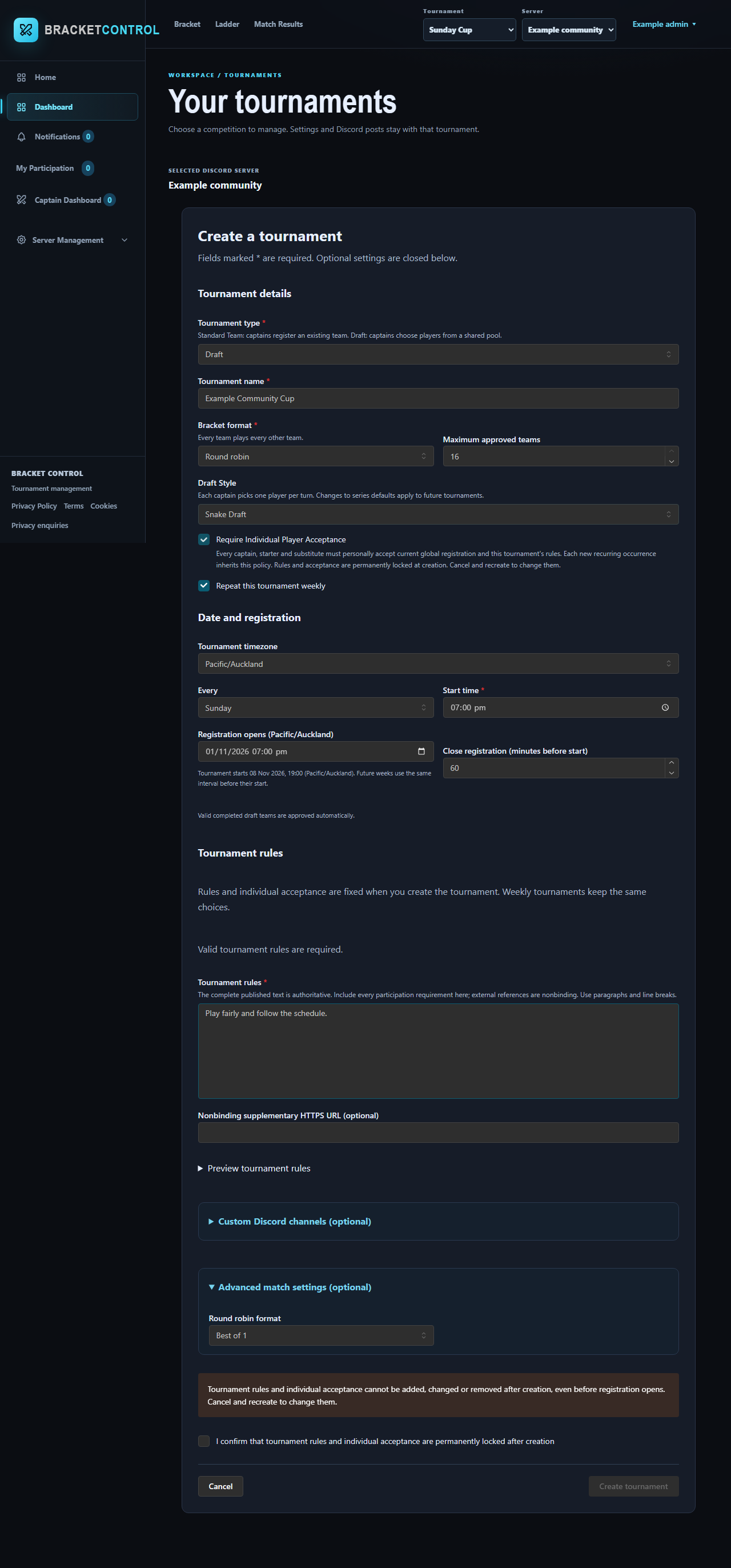
Everything is on one form. Fields marked with an asterisk (*) are required. Custom Discord channels (optional) and Advanced match settings (optional) are closed until you need them.
Choose the tournament type
Choose Tournament type first:
- Standard Team: captains register an existing team.
- Draft: captains choose players from a shared pool. Choose the Draft Style. Standard keeps the same captain order each round; Snake reverses it each round. Existing competitions using the older draft order keep that choice.
- Enter Tournament name.
- Choose Bracket format. The release preview below covers Single Elimination, Double Elimination, Round Robin, Swiss, Free For All and Leaderboard. Existing production controls remain available until the coordinated release.
- Set Maximum approved teams, from 2 to 16.
- For Standard Team, choose Division (optional) if you group teams by skill. Drafts stay independent of divisions.
- Check Repeat this tournament weekly if you want recurring events. Clear it for a one-time event.
For drafts, see Draft tournaments and Draft-only community setup. Drafts do not require team-registration or staff-approval channels.
Set the date and registration period
- Choose Tournament timezone.
- For a one-time event, set the tournament start. For a weekly competition, choose the day and Start time.
- For normal Standard Team tournaments, continue using Registration Opens and Registration Closes (shown as Registration opens and Close registration (minutes before start)).
- For Draft tournaments, set Draft Call Opens, Draft Call Locks and Tournament Start Time. Draft Call Opens is when players can start joining the Draft Voice Channel. Draft Call Locks is when the channel closes to new participants so drafting can begin. Opening must be before locking, and locking must be at or before the tournament starts.
- For weekly Standard Team tournaments, choose How teams return each week: New application every week or Prefilled roster; captain must check in.
Prefilling a lineup does not confirm attendance. Captains still confirm each event they intend to play. New or changed lineups need organiser approval; an unchanged approved lineup can keep approval. Valid draft lineups are approved automatically when the draft completes.
Draft calls use the existing configured Draft Voice Channel. The bot locks it before opening, opens it at the scheduled time, and locks it to new arrivals at the locking time. Connected participants remain in the room. It locks again after tournament completion or cancellation. Weekly calls repeat automatically. Overlapping calls for the same channel are rejected; choose different times. If an earlier tournament is still running, the room stays locked. Existing private-channel restrictions continue to apply.
Organisers can edit an individual call under the tournament settings. Editing recurring defaults applies to future tournaments; check already-created weeks separately. Website-only drafts can still use imported player tags without a voice channel.
Check the rules and optional settings
- Optionally enter Tournament rules. Organisers communicate and enforce these; individual acceptance is not required.
- Open Preview tournament rules to check the text.
- If needed, open Custom Discord channels (optional). Empty choices use the division’s channels, then server defaults. Pending approvals must use a private staff channel.
- If needed, open Advanced match settings (optional) to choose best-of formats or extra placement games. Only settings for your chosen bracket format are shown.
A best-of-three match needs two game wins; best-of-five needs three. With the default bracket-reset option in double elimination, the lower-bracket finalist must win the Grand Final and the reset to become champion. Optional placement games must finish before the tournament is complete.
Create and prepare the tournament
- Confirm the tournament configuration.
- Select Create tournament.
- Open Manage Tournament on the event’s card.
- For Standard Team, open Teams & players to review the Approval queue. For Draft, use Captain Selection, then Live Draft.
- Check readiness in Overview. Use Team order to check the starting order.
- In Overview, expand Ready to start? Bracket controls and select LOCK ROSTERS & GENERATE BRACKET. Read and confirm the prompt.
Use Matches & results to record results or review disputes. Use Discord & publishing for bracket images, team lists and announcements. Creating a tournament does not publish every tournament’s messages. See Match results.
Example screens
These earlier illustrations may show removed acceptance fields. Follow the current instructions above.

Cancelling or ending a schedule
Cancel Tournament cancels the selected event and stops its reporting and future posts while preserving its history. End Recurring Tournament Schedule stops future events in that competition; it does not cancel an event already running. Check the name in each confirmation carefully.
Illustrated reference
The original Creating Tournaments PDF remains available. Use this page for current instructions where older screenshots differ.
Competition formats and stages (release preview)
These controls are prepared for the coordinated application release. Their presence in this guide does not mean the production application has been updated.
Choose Single Stage Tournament to use one format throughout, or Two Stage Tournament to run groups followed by a final stage. Registration type (Standard Team or Draft) is separate from competition stages.
| Format | Competition and ranking |
|---|---|
| Single Elimination | A loss eliminates a team. Winners advance through the bracket. |
| Double Elimination | Teams enter winners and losers brackets, with configurable Grand Finals. |
| Round Robin | Every team meets every opponent; configure one to four meetings. Wins earn three points. |
| Swiss | Configure rounds. Pairings follow current records and avoid rematches when a complete alternative pairing exists. An odd field receives a rotating bye worth a win. |
| Free For All | Multiple teams compete in balanced heats. Record each team’s scores and unique finish rank, then advance the configured number per heat. The last heat determines the winner. |
| Leaderboard | Every team plays the configured rounds. Sum all scoring sets to calculate total points. Higher totals rank first. |
Swiss rankings use points, Median-Buchholz, head-to-head results, then original seed. Median-Buchholz sums opponents’ points and discards the highest and lowest when more than two opponents have been played. Round Robin ranks by points, score difference, wins, then seed. Deterministic seed order resolves remaining ranking ties.
For Free For All and Leaderboard, organisers confirm all participant scores together and record a reason. Advancement ranks must be unique. Keep score decisions accurate before the next round starts; earlier decisions and changes remain in the audit history. Ordinary two-team games continue to use the captain scoresheet, opponent confirmation/dispute and administrator correction workflow.
Two Stage Tournament
- Choose the final-stage Bracket format and Group-stage format. Elimination, Round Robin and Swiss formats are supported in both stages.
- Set the number of groups and qualifiers per group. Every group needs at least two eligible teams; total qualification is limited to 16 teams.
- Before starting, open the bracket page to assign eligible teams manually, or leave assignments automatic for balanced groups based on seed order.
- Complete every group and review group standings.
- Select Start final stage. Only qualified teams advance; the group matches remain available.
Qualification cannot cut through unresolved tied elimination places. Configure placement matches before starting when qualification needs to distinguish those places. Final-stage seeds interleave groups by qualification position. With Split Participants, higher qualifiers start in the winners bracket and the remaining qualifiers start in the losers bracket.
Grand Finals and Split Participants
For Double Elimination, select:
- 1–2 matches (bracket reset): the losers-bracket finalist must win twice. The reset remains conditional unless that team wins the first final.
- 1 match: either finalist becomes champion by winning the final once.
- None — separate bracket winners: both brackets finish independently. No overall champion is declared. Group qualification must include all tied bracket winners.
Split Participants starts the higher half of the seeded field in the winners bracket and the remaining teams in the losers bracket. A team starting in the losers bracket has one remaining life. Uneven fields use byes without duplicating teams.
Placement matches
Enable Play additional matches to break tied placements before starting a Single or Double Elimination competition. Select any depth from 3rd through 16th place. Additional classification matches distinguish teams tied at the selected depth. A Double Elimination bracket does not add a redundant third-place match when third place is already decided.
Classification results do not change the champion. Complete all required classification fixtures to finish the tournament. Competition settings, group assignments and seeding lock when the tournament starts. Existing tournaments retain their stored structure and results.